.webp&customEmojiId=2effb952-797b-8004-bcbb-007a48a6fc83&width=250)

.png&blockId=31ffb952-797b-8145-bc4a-e9b45e074ece)


Do you want to create more schedules to meet more children on Gguge?
Please refer to the instructions below to freely open your schedules.
▌ 1. Can I Create Schedules Myself?
Regardless of class type (one-day, multi-session, subscription, etc.), you can create schedules when the class status is [Approved].
You can check the class status at [Teacher Gguge Website > My Classes > Left Menu > My Classes > Class List].

Schedules cannot be registered if the class status is [Draft], [Pending Approval], or [Rejected].
▌ 2. How Do I Access the Schedule Creation Page?
Click on the desired time slot in [Teacher Gguge Website > Left Menu > Schedule > Daily or Weekly Calendar] to add a schedule.
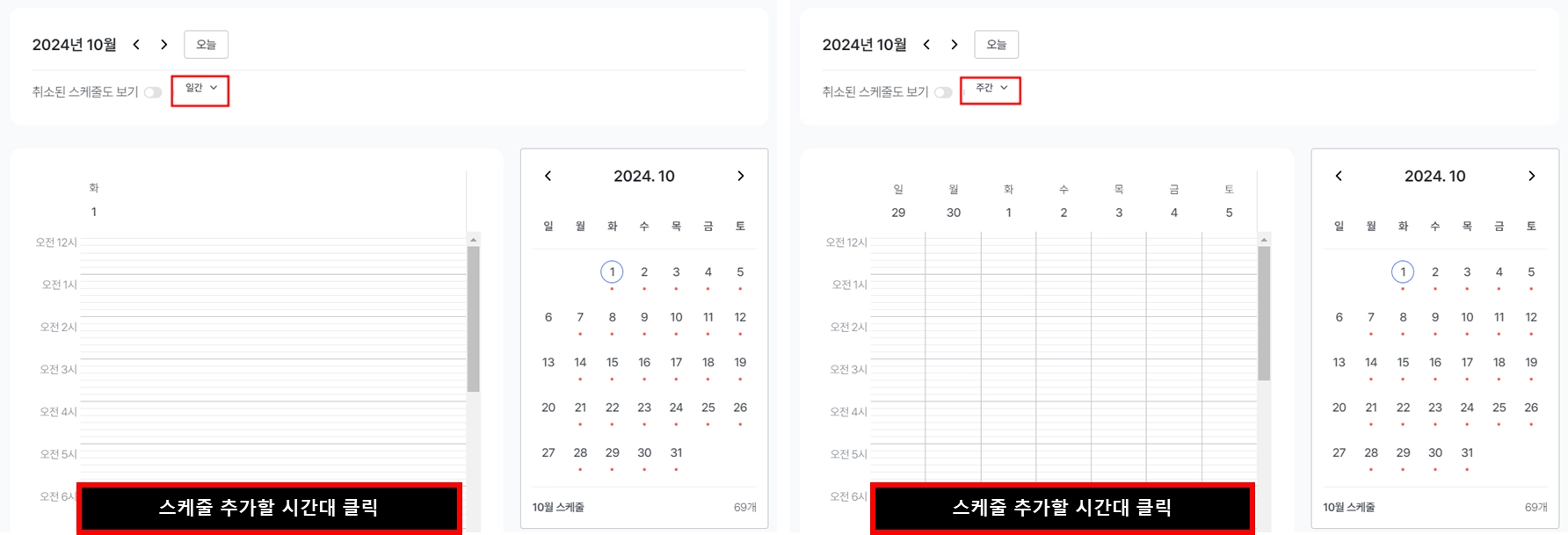
When a schedule is created, the date and time will be displayed for your reference.
▌ 3. Does the Schedule Creation Path Differ by Class Type?
The path to create schedules is the same for all class types (one-day, multi-session, subscription, etc.), but the options you select differ slightly.
▌ 3-1. One-Day
1.
Select the one-day class for which you want to create a schedule.
•
On the class date selection screen, choose your desired class date and start/end time.
◦
You can select schedule times based on the duration of each class session; times that overlap with already created schedules cannot be selected.
◦
There is a minimum 10-minute gap between schedules to ensure smooth class preparation and delivery.
•
The repeat feature allows you to create multiple schedules at the same day and time all at once.
The default option is set to 'No Repeat'. If you want to create multiple schedules at once, please change the option.
[Repeat Options]
◦
No Repeat: Only one schedule will be created for the selected date and time.
◦
Weekly Repeat: Schedules can be created at the same day/time every week, up to your desired number.
◦
Biweekly Repeat: Schedules can be created at the same day/time every other week, up to your desired number.
However, to prevent registrations from being spread across too many dates, we recommend creating only 3–4 repeat schedules.
Let's look at an example!
If you select 3 weekly/biweekly schedules starting Tuesday, October 1st:
•
Weekly repeat: Oct 1st, 8th, and 15th — 3 schedules are created.
•
Biweekly repeat: Oct 1st, 15th, and 29th — 3 schedules are created.
▌ 3-2. Multi-Session
1.
Select the multi-session class for which you want to create a schedule.
•
On the class date selection screen, choose your desired class date and start/end time.
◦
You can select schedule times based on the duration of each class session; times that overlap with already created schedules cannot be selected.
◦
There is a minimum 10-minute gap between schedules to ensure smooth class preparation and delivery.
•
If you want to hold classes more than twice a week, please add additional class days.
However, classes will start from the request designated as the first class day.
▌ 3-3. Subscription
1.
Select the subscription class for which you want to create a schedule.
2.
On the class date selection screen, choose your desired class date and start/end time.
•
You can select schedule times based on the duration of each class session; times that overlap with already created schedules cannot be selected.
•
There is a minimum 10-minute gap between schedules to ensure smooth class preparation and delivery.
3.
If you want to hold classes more than twice a week, please add additional class days.
However, classes will start from the request designated as the first class day.
4.
Please select the curriculum to be covered on the first class day.
Please conduct classes in order, starting from the curriculum selected as the first curriculum.
5.
For subscription classes, the entire curriculum repeats until you end the class.
By default, the end date is set to 'Not Set'. If you want to set an end date in advance, change the end date setting option to 'Set' and select the end date.
•
The end date is the last day you are required to conduct classes.
•
You can set or change the end date later after creating the schedule. However, end date changes are only possible up to 48 hours before the schedule set as the end date.
▌ 4. Please Note When Creating Schedules!
•
You can open schedules between 01:00 and 23:50 on any day, including weekdays and weekends.
◦
Customer center hours are weekdays 10:00–19:00, closed during lunch 12:30–13:30.
◦
If an issue occurs during a schedule opened outside customer center hours, we cannot assist immediately. We strongly recommend checking your device settings and class environment before the class starts.
◦
Issues that occur outside customer center hours will be addressed during the next operating hours.
•
There is a minimum 10-minute gap between schedules to ensure smooth class preparation and delivery.
◦
e.g. If a schedule from 10:00–10:50 has already been created, the next schedule can start from 11:00.
•
Sales begin immediately upon schedule creation. Please check that your schedule does not overlap with personal plans or other class schedules before creating it.
•
If a class does not appear in the class list when creating a schedule, either the class cannot be created directly by the teacher, or the class status is not [Approved].
•
If you wish to create a makeup class schedule, please contact the customer center for assistance.
Thank you for joining Gguge to help talented students grow. If you have any further questions, please contact the Teacher Gguge Customer Center.